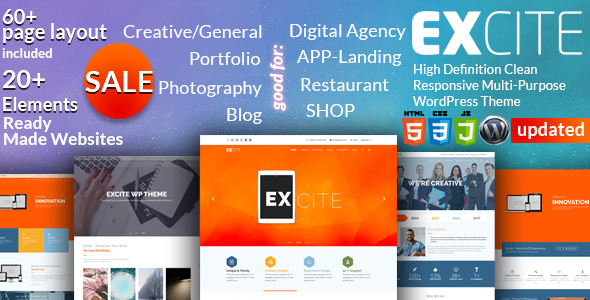

sell website making service

Saying Goodbye to Skype – A Personal Reflection and a New Path Forward

This May marks the end of an era—Skype is officially shutting down.

For many, it might just be another app, but for me, it holds a deep, personal significance. Skype wasn’t just a communication tool—it was the heartbeat of my early career in web development. It connected me with clients across the world and kept me in constant touch with teammates, collaborators, and mentors. It was available 24/7, and so was I.

I vividly remember late-night discussions, client calls, team syncs, and countless files shared over Skype. Back when communication tools were fewer and options limited, Skype was the bridge that made global teamwork possible for me.

Now, as Skype fades away, I face a difficult realization: many of my past clients and colleagues existed only in my Skype contact list. Many haven’t been online in years, and with Skype’s shutdown, I may lose the ability to ever reach them again. It’s not just about losing a platform—it’s about losing connections, relationships built over years, and the digital spaces we shared.

However, there’s a silver lining.

Microsoft Teams is the recommended alternative, and the transition is quite seamless. You can simply log in with your Skype credentials, and Teams will be ready to go. In fact, when you open Skype now, it provides a notice and instructions to move to Teams—just follow the steps.

To everyone reading this:
If we’ve worked together in the past, or if you’re in my Skype contact list—please connect with me on Microsoft Teams. Let’s not lose the bond we’ve created over the years.

👉 Here’s my Microsoft Teams invite link

Skype may be closing, but our connection doesn’t have to.

14.11 MILLION IMPRESSIONS in 1 month on Pinterest – here’s how we did it. 

We recently helped grow a client’s Pinterest account to over 14 million impressions – with massive jumps in all key metrics:

✅ +71% Impressions

✅ +68% Engagements

✅ +73% Outbound Clicks

✅ +68% Saves

✅ +47% Engaged Audience

14.11 MILLION IMPRESSIONS in 1 month on Pinterest – here’s how we did it. 

What we did:

🔍 Account Audit & Niche Research

We started with a deep dive into what’s trending in the client’s niche and audited their current Pinterest setup. From keywords to pin formats, we studied what performs – and what doesn’t.

📌 Optimized Boards & Profiles

We revamped board titles, descriptions, and arranged them strategically to match user intent and search trends.

🎯 Content Strategy That Converts

We planned and scheduled fresh, eye-catching pins regularly using high-converting design templates with videos and keyword-rich descriptions. Every pin had a purpose – whether it was to drive clicks, saves, or reach.

📅 Consistent Posting & A/B Testing

We used a steady posting schedule and tested pin styles, topics, and timings to find what works best for the audience.

📊 Weekly Tracking & Iteration

We didn’t set it and forget it. We tracked performance weekly, spotted what was going viral, and doubled down on it. Everything we did was data-driven.

📌 The result? A Pinterest account that now drives traffic, saves, and engagement like a well-oiled machine.

If you’re looking to turn your Pinterest (or any social media platform) into a consistent traffic & conversion channel, we’d love to help.

📩 Reach out if you’re ready to grow

How I Solved the White Screen Issue on the WordPress Page/Post Edit Screen

If you’ve ever run into a white screen while trying to edit a post or page in WordPress, you know how frustrating it can be — especially when it happens on a live site. I recently faced this exact issue on a WordPress website hosted on Cloudways, and here’s how I identified and fixed it, I am an expert in WordPress Customization so this was easy to solve with a little bit of help from internet.


The Problem

How I Solved the White Screen Issue on the WordPress Page/Post Edit Screen

One day, I logged into the WordPress admin area of a live website and tried to edit a post. But instead of loading the content editor, the screen was completely blank — no errors, just a white screen. This issue persisted across multiple posts and pages, making content management impossible.


Initial Troubleshooting

To avoid disrupting the live environment while investigating the problem, I cloned the site to a staging environment on Cloudways. To my surprise, the white screen issue didn’t occur on the staging site.

How I Solved the White Screen Issue on the WordPress Page/Post Edit Screen

At this point, I knew the issue wasn’t related to the WordPress core, the theme, or the plugins, because the staging site was an exact replica of the live one. That led me to believe the problem had to be something external.


The Clue

Digging deeper, I checked the Cloudways error log and saw a message that hinted at the issue:
“cache full”

How I Solved the White Screen Issue on the WordPress Page/Post Edit Screen

That was my first real lead. I tried clearing the cache using the WordPress caching plugin installed on the site, but it didn’t solve the problem.


The Real Fix

Then I remembered a key difference between the two environments:
The live site was using Cloudflare, while the staging site was not.

So I went into the Cloudflare dashboard and purged the cache.

How I Solved the White Screen Issue on the WordPress Page/Post Edit Screen

Immediately after clearing the Cloudflare cache, the white screen issue disappeared on the live site. The editor pages began loading normally again, and everything was back to business as usual.


Takeaway

If you’re seeing a blank screen when editing posts or pages in WordPress and everything seems fine otherwise, Cloudflare cache could be the culprit — especially if your staging site works but your live site doesn’t.

Check Most Recent Posts